- Login to admin area of your WordPress website.
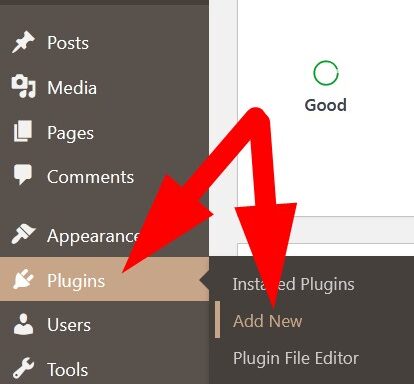
- Scroll down to Plugins section and select Add New.
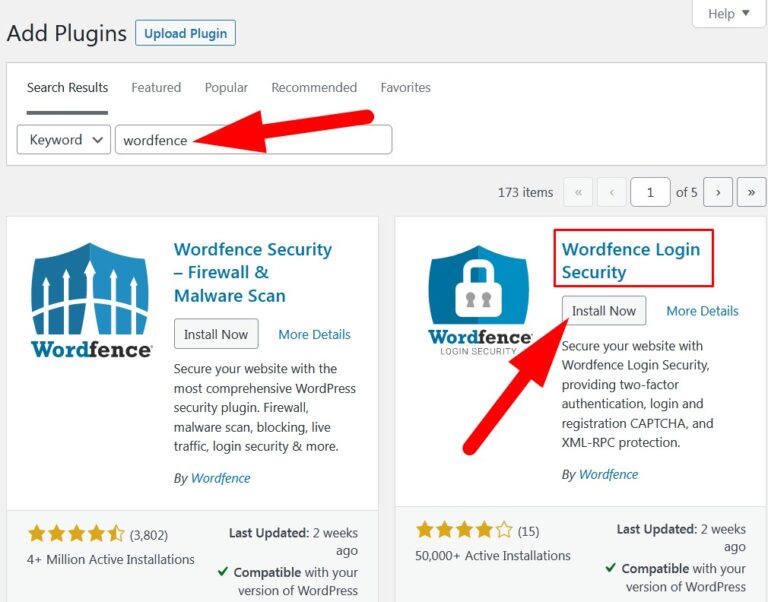
- In the search bar, type wordfence and list of related plugins will appear.
- Click over Install Now to install Wordfence Login Security as directed in below image to install the plugin.
- After installing the Plugin, click over Activate.
- Now, on the left panel of WordPress dashboard click over Login Security.
- Then, scan the QR with Google Authenticator App in your mobile phone and enter the code in the box as directed in below given image.
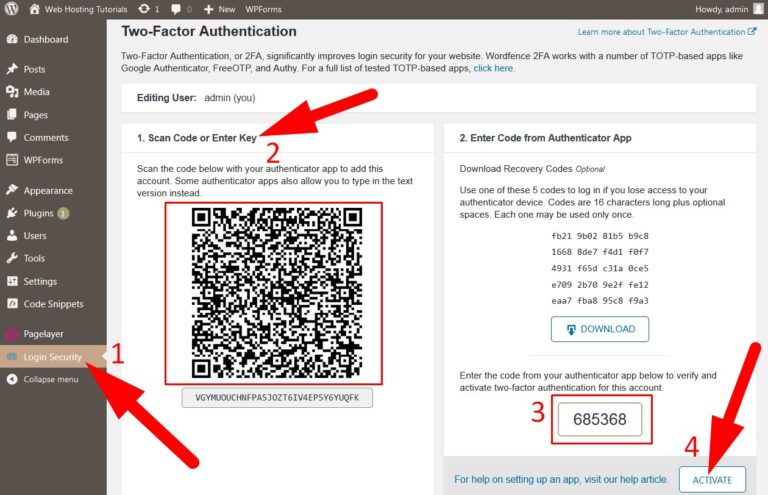
- Now, click over Activate to complete the setup.
- You have successfully activated login security on your WordPress admin area.
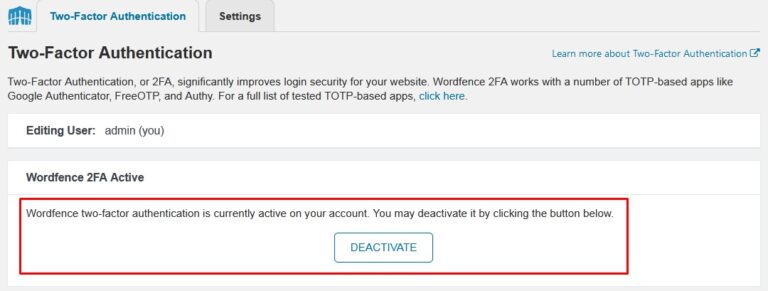
To verify this, go back to your WordPress login page and enter the details. It will redirect you to Two-factor Authentication page where you have to enter the code from Google Authenticator App.
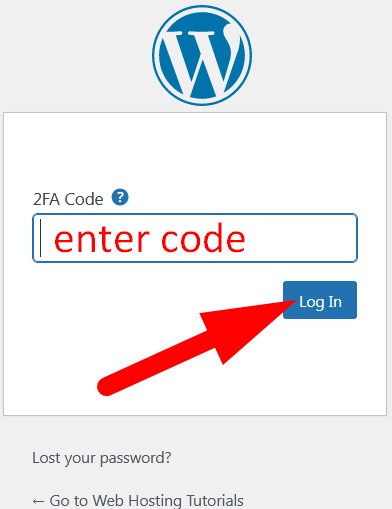
You will successfully log in to your WordPress dashboard.
The End! should you have any inquiries, we encourage you to reach out to the Vercaa Support Center without hesitation.